

Psychology is the scientific study of mind and behaviour viewed from social, developmental, clinical and biological perspectives.
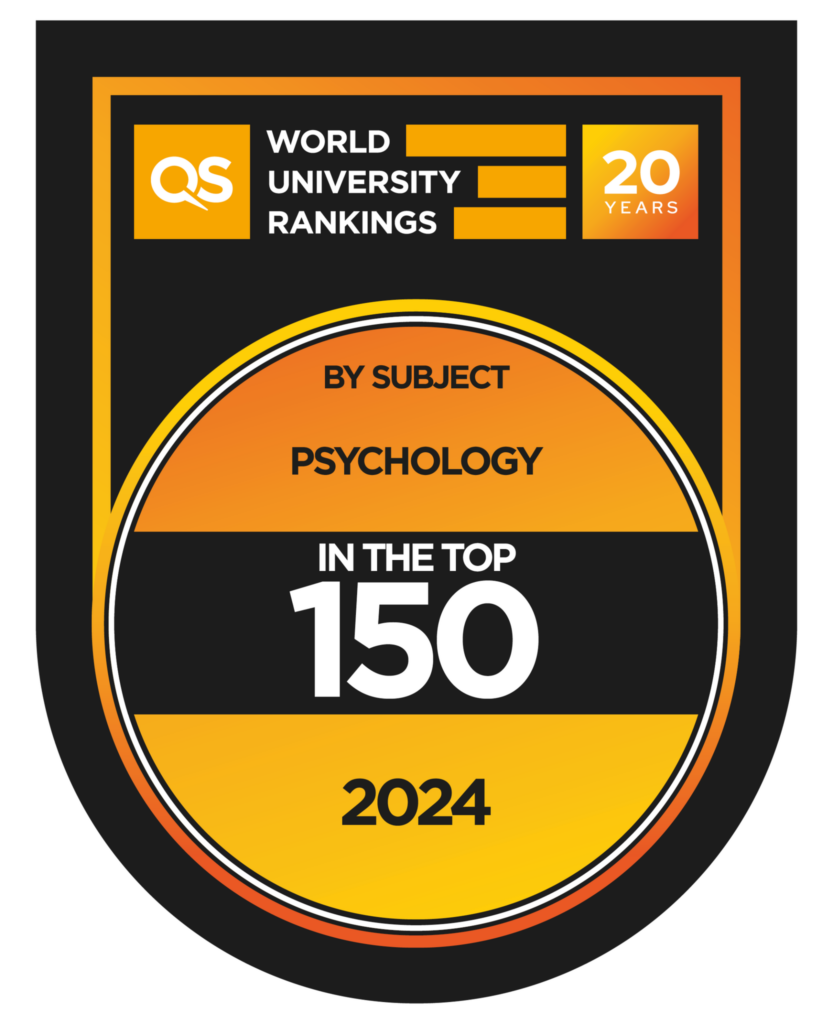
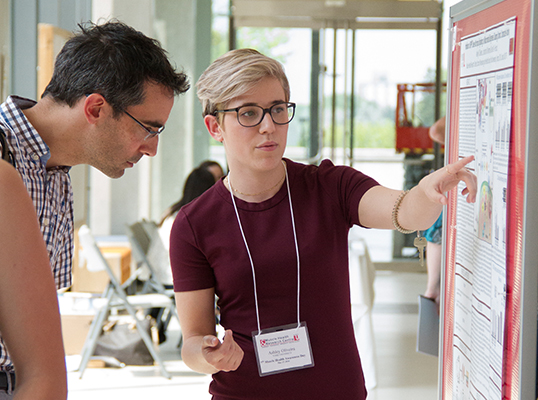
York’s Psychology program was ranked among the Top 150 Psychology programs in the world and 4th in Canada by QS World University Rankings by Subject 2024. York's undergraduate programs (BA and BSc) offer the largest and most diverse selection of courses of any university in Canada. We provide learning opportunities and research experiences in all areas of Psychology including developmental and social psychology, clinical and counselling psychology, behavioural and cognitive neuroscience, history of psychology, statistics and quantitative methods, writing in psychology and critical thinking. We offer concentrations in all of these areas and we offer certificates in Counselling and Mental Health and in Quantitative Methods. Our professors research a wide variety of topics ranging from personality, memory, learning, intelligence, motivation, psychological disorders, biological basis of behaviour, bullying, perception, empathy, cognition, culture, child development, quantitative methods, and much, much more.
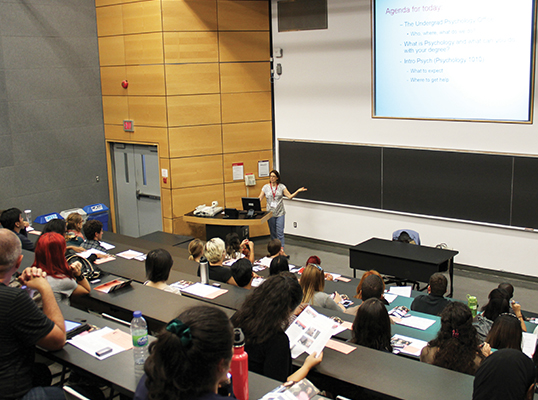
We offer classroom instruction during the day and also have online and evening classes available, which many of our students find to be a great option for busy daily schedules. There are on-line and blended course opportunities as well as experiential learning in so many different off-campus settings, from local schools, to community clinics and even the local zoo.
Dr. Jennifer A. Connolly
Psychology Department Chair.
Psychology Links
- Choose Psychology at YorkU
- Career Options in Psychology
- York University Psychology Clinic
- Resource Centre - Hebb Lab
- Student Counselling Services
- Faculty Resources Website
Read more on York University Psychology department Certificates and Concentrations.
Programs of Study
What You See Isn’t Always What You Get

How to Reach Us
For contact information, academic advising, and general inquiries, please visit the contact page.